ScreenRecorder Pro
A complete, lightweight screen recording tool built for Windows. Record anything on your screen with full system audio support.
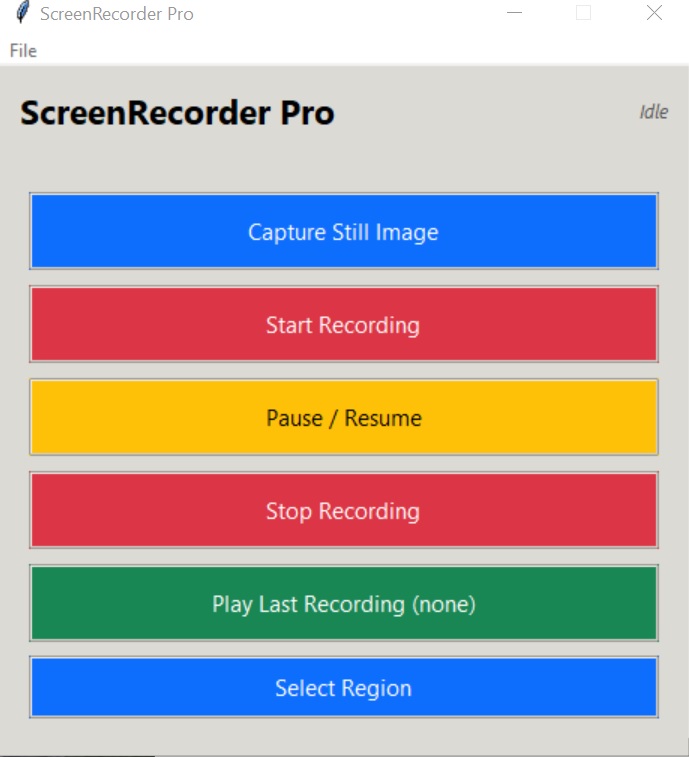

Record your full screen or any custom region with system audio. Adjust frame rate, select output folder, and export clean AVI files. No sign-up, no account, no strings attached.
Download ScreenRecorder Pro FreeWindows 10 & 11 · .exe · Lightweight · Free forever
ScreenRecorder Pro is a clean, safe application. Some antivirus programs may flag it as suspicious — this is a false positive caused by the fact that screen recorders access your display, audio devices and file system, the same permissions used by OBS, Camtasia, and other professional tools.
If your antivirus blocks the download or prevents the app from running:
- Temporarily disable your antivirus before downloading and launching the file for the first time.
- If Windows Defender shows a SmartScreen prompt, click "More info" → "Run anyway" to proceed.
- If the file is quarantined, go to your antivirus quarantine section, restore the file and mark it as trusted.
- After confirming it works, re-enable your antivirus and add ScreenRecorder Pro as a trusted exception (whitelist) to prevent future interruptions.
The application contains no malware, spyware, adware, or unwanted software. It is hosted directly on snoopbee.com.
All Key Features
See It In Action
How to Install & Start Recording
Click the Download button above. The file downloads directly from snoopbee.com — no third-party installer or wrapper.
If your antivirus or Windows SmartScreen alerts, temporarily disable it or click "More info → Run anyway". See the warning box above for full instructions.
ScreenRecorder Pro is a portable executable. Double-click to launch. No installer, no registry entries, no admin rights required.
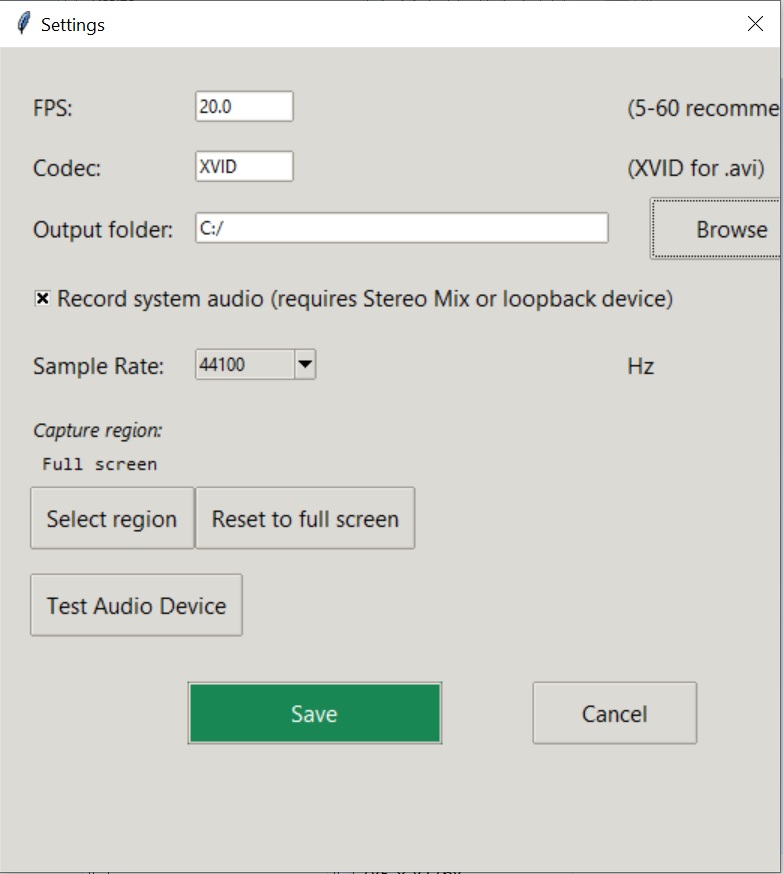
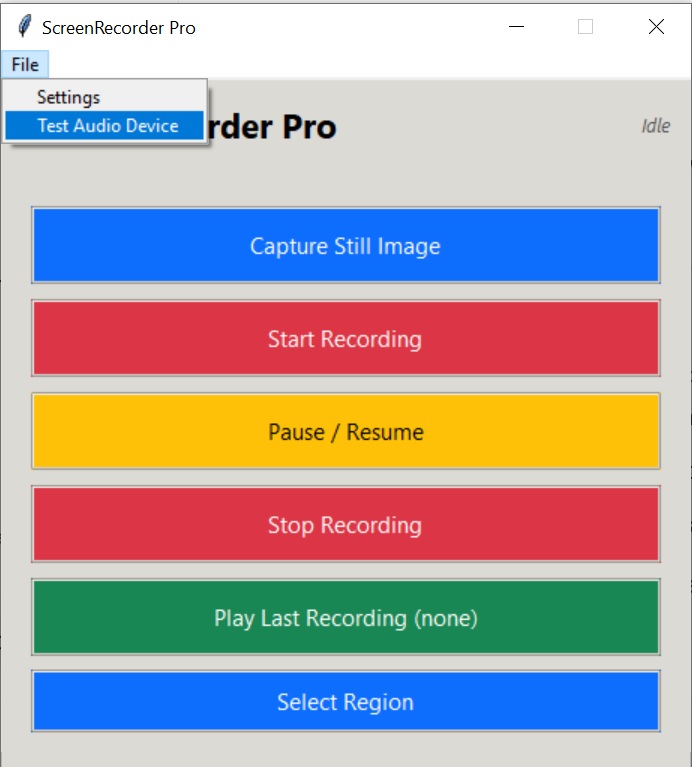
Go to File → Settings. Set your preferred FPS (20–30 for tutorials, 60 for gameplay), choose an SSD output folder, and enable system audio if needed.
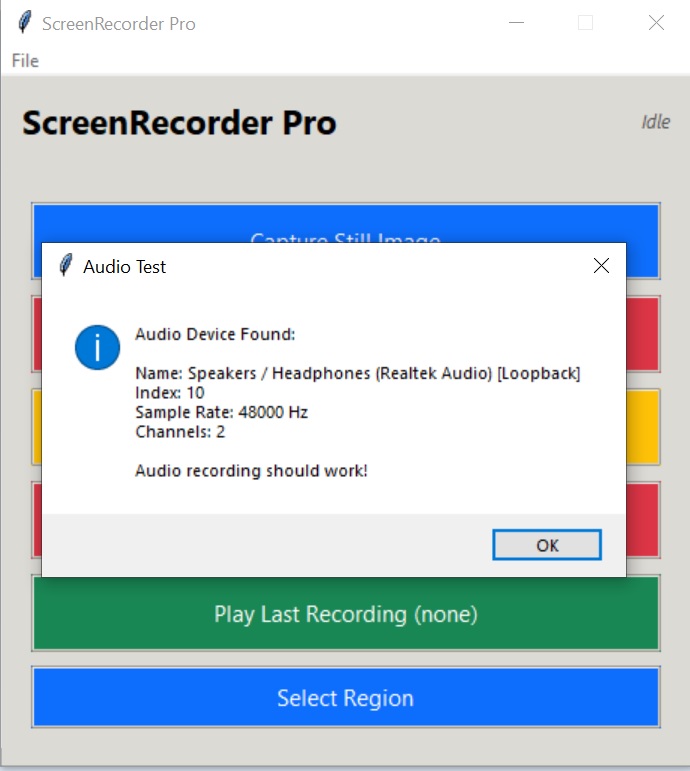
Click Test Audio Device to confirm loopback audio is working. Then press Start Recording — you're live.
Read the complete guide: ScreenRecorder Pro Guide 2026 →